Chrome Connect plugin
The Chrome Connect plugin adds the chrome-devtools-cli skill to JetBrains AI Assistant coding agents, thus providing integration between the AI chat and Chrome DevTools and allowing agents to access live runtime data and perform browser interactions. This equips AI agents integrated into WebStorm with real-time observability and action capabilities, closing the loop between code generation, debugging, and validation for frontend development.
The video below shows how you can have a runtime error in a React full-stack application fixed by using the Codex agent and the chrome-devtools-cli skill.
Before you start
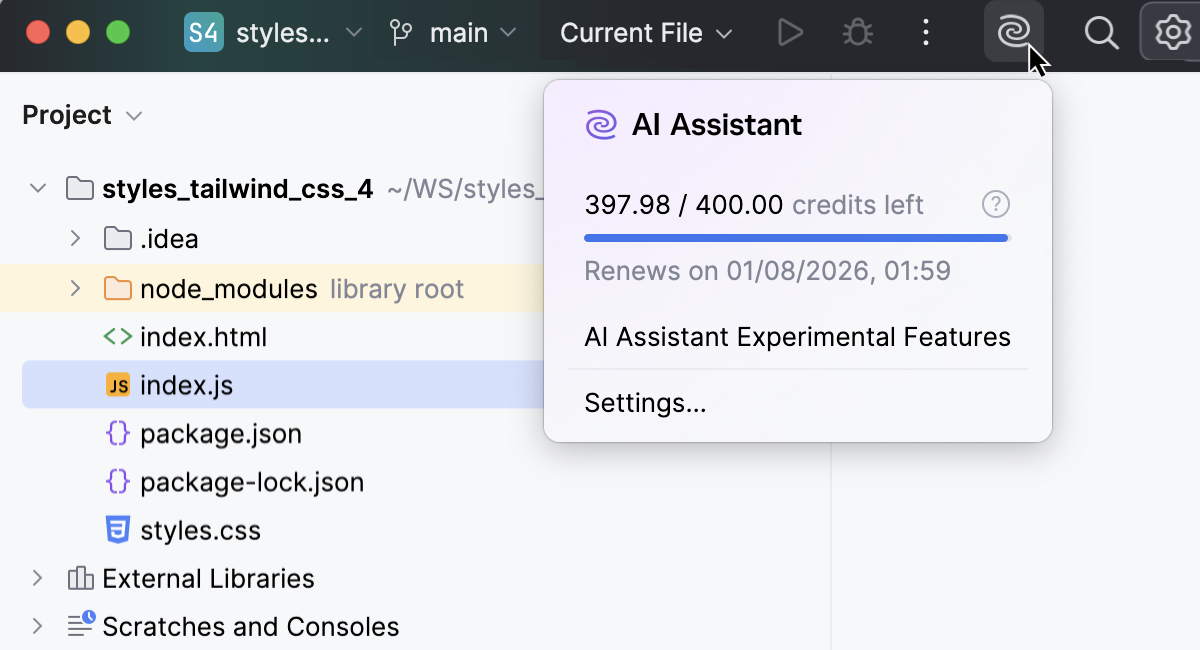
Make sure AI Assistant is installed.
Make sure the Chrome Connect bundled plugin is enabled in the Installed tab of the Settings | Plugins page as described in Plugins.
In the Settings dialog (Ctrl+Alt+S) , go to , and make sure the
chrome-devtools-cliskill is enabled.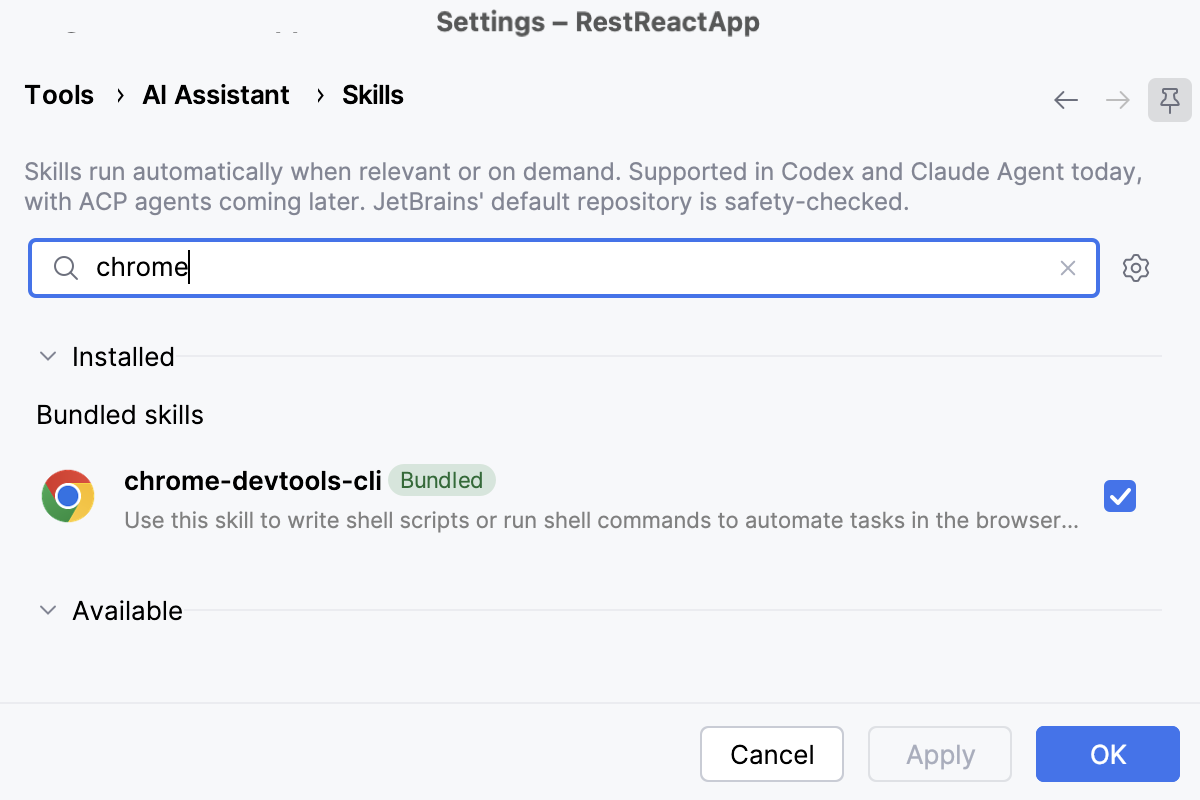
Use the Chrome DevTools MCP server
The Chrome Connect plugin relies on an MCP (Model Context Protocol) server that lets AI Assistant interact with a running Chrome browser through the Chrome DevTools Protocol (CDP).
This Chrome DevTools MCP server is implemented through the chrome-devtools-mcp npm package. The package is installed once, in the background, when AI Assistant is first run against a project recognized as frontend‑like.
To decide whether a project is frontend-like, WebStorm checks the project's package.json file for mentions of UI frameworks or bundlers and reuses detection of JavaScript or TypeScript frameworks.