Debugger. Stepping
Use this page to improve the debug stepping speed and specify the elements to be skipped while stepping.
Oracle
In this area, select the mode to step through PL/SQL code.
In the Graceful mode, you can pause the session that you debug (the target session), set and remove breakpoints. If no valid breakpoints are set, the debugger steps through code on a line-by-line basis.
In the Native mode, the debugger uses Oracle native debugging commands. You cannot pause the target session or manage breakpoints but you might experience a boost in performance in CPU-intensive operations (operations that include a lot of computations and loops). You can read more about Oracle debugging commands in the official Oracle documentation. If no valid breakpoints are set, the debugger executes the whole routine.
Select the checkbox to force the debugger pause at the beginning of debuggable code. The place where the debugger pauses is detected automatically. If you assign variable values in the declaration section, the debugger pauses at the variable declaration. If no values are assigned to variables, the debugger skips the declaration section and pauses at the
BEGINkeyword in the execution section.
Item | Description | ||||||||||||||||||
|---|---|---|---|---|---|---|---|---|---|---|---|---|---|---|---|---|---|---|---|
Always do smart step into | By default, this checkbox is selected and Smart Step Into is invoked automatically when you invoke Step Into F7 in a line that contains multiple method calls. After that, you can select the call to step into. If this checkbox is cleared, you can choose between Step Into F7 or Smart Step Into Shift+F7. For more information, refer to Step into and Smart step into. | ||||||||||||||||||
Do not step into library scripts | Select this checkbox to suppress stepping into library scripts while debugging. In the example below, the debugger skips a library method 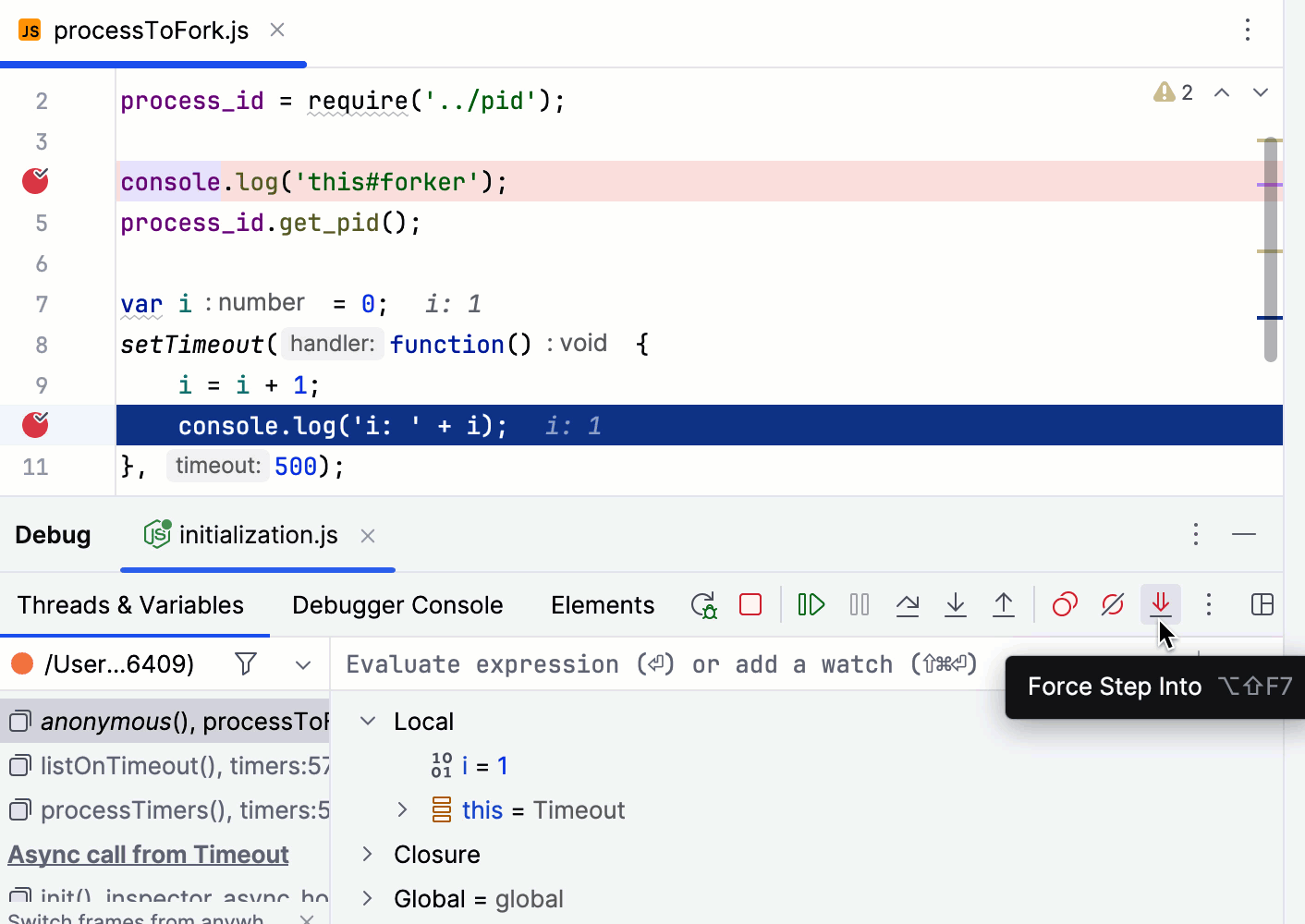 | ||||||||||||||||||
Do not step into scripts | Select this checkbox to suppress stepping into certain scripts while debugging. Use the toolbar buttons to manage the list of scripts to be skipped.
|


 /
/
